Screen, window, or one tab
Chrome's own picker asks what to share, and the extension only ever receives the one thing you chose.
Chrome extensions Screen Recorder
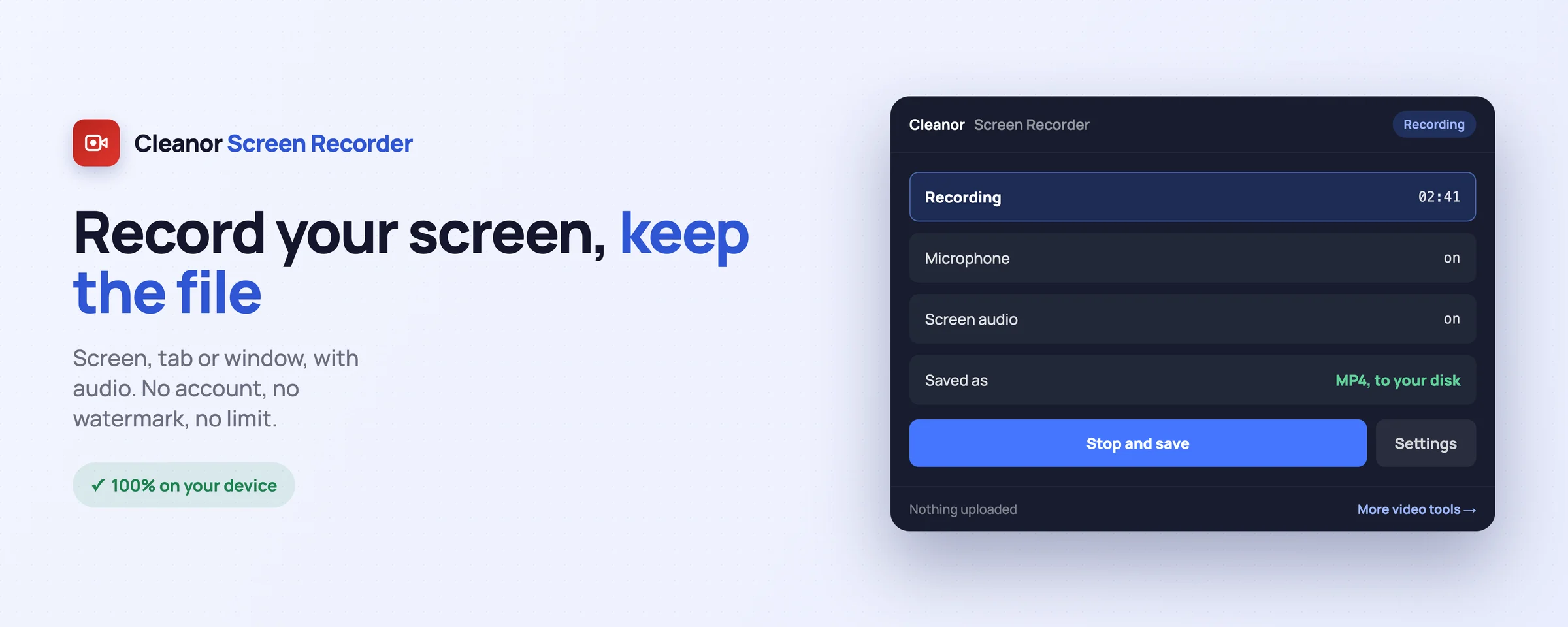
To record your screen in Chrome, install this extension, click the toolbar button and choose the screen, window or tab you want in the picker Chrome shows you. Click again to stop, and the MP4 is already in your downloads. There is no account, no upload, no watermark and no time limit, because the recording never leaves your computer.
Record a screen, a window or a single tab, with the audio and your microphone, and get an MP4 in your downloads. No account, no upload, no watermark, and no five-minute cap.
This one is not in the Chrome Web Store yet: it is written, packaged and open source, and the listing is on its way. Build it from the source in the meantime.
Everything you would juggle across websites, done locally in a couple of clicks.
Chrome's own picker asks what to share, and the extension only ever receives the one thing you chose.
Record the sound coming out of the screen or tab, your microphone, or both mixed into a single track.
The recording is written straight to your disk. There is no server to upload it to, which is why there is no sign-up.
Most browser recorders hand you a WebM that will not open in QuickTime or import into an editor. This one records MP4 wherever Chrome can encode it.
The recording runs in a background document with no window. It cannot appear in your own recording, and it cannot be closed by accident.
Record for as long as you like. Nothing is burned into the corner of the result, and nothing stops at five minutes.
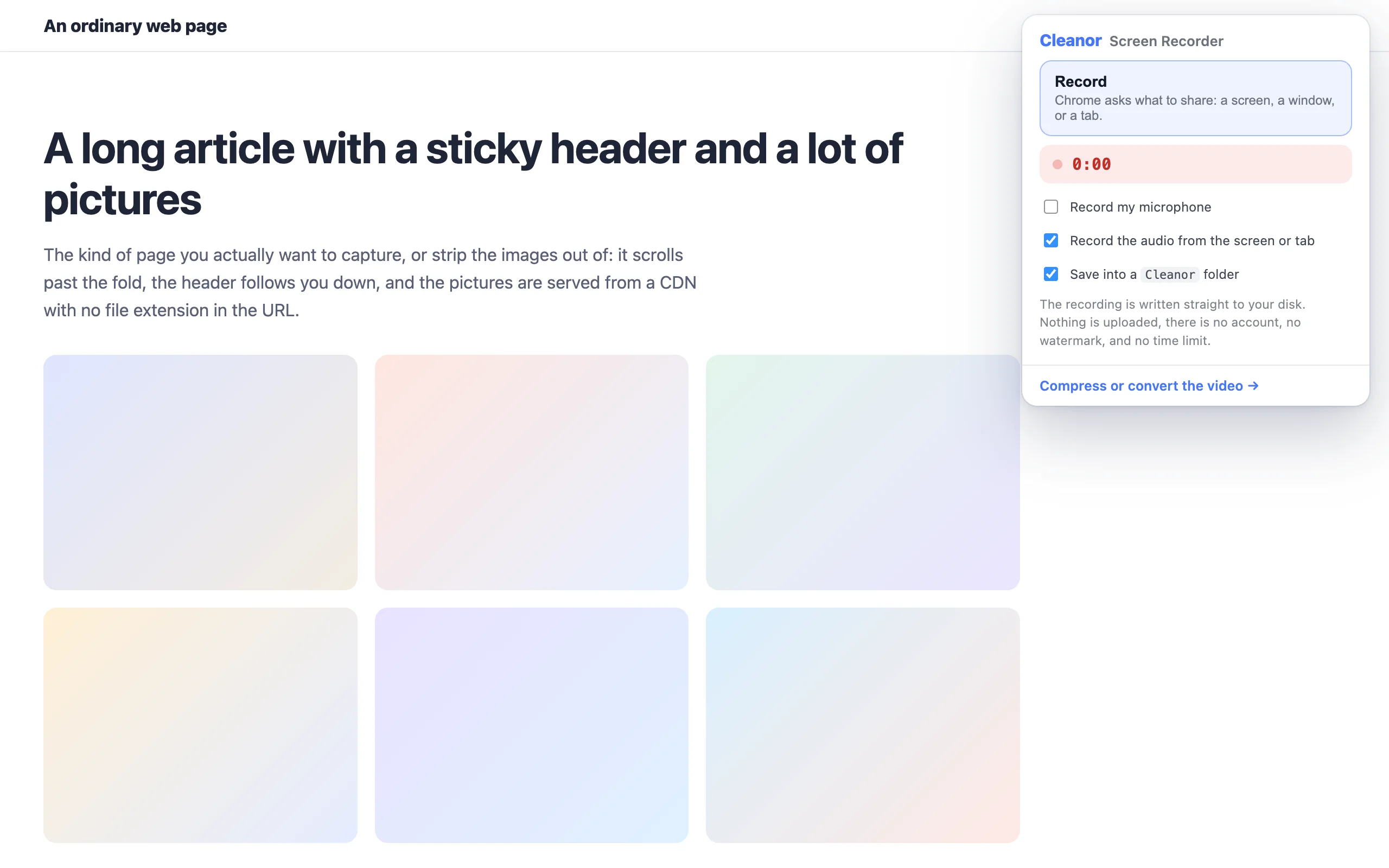
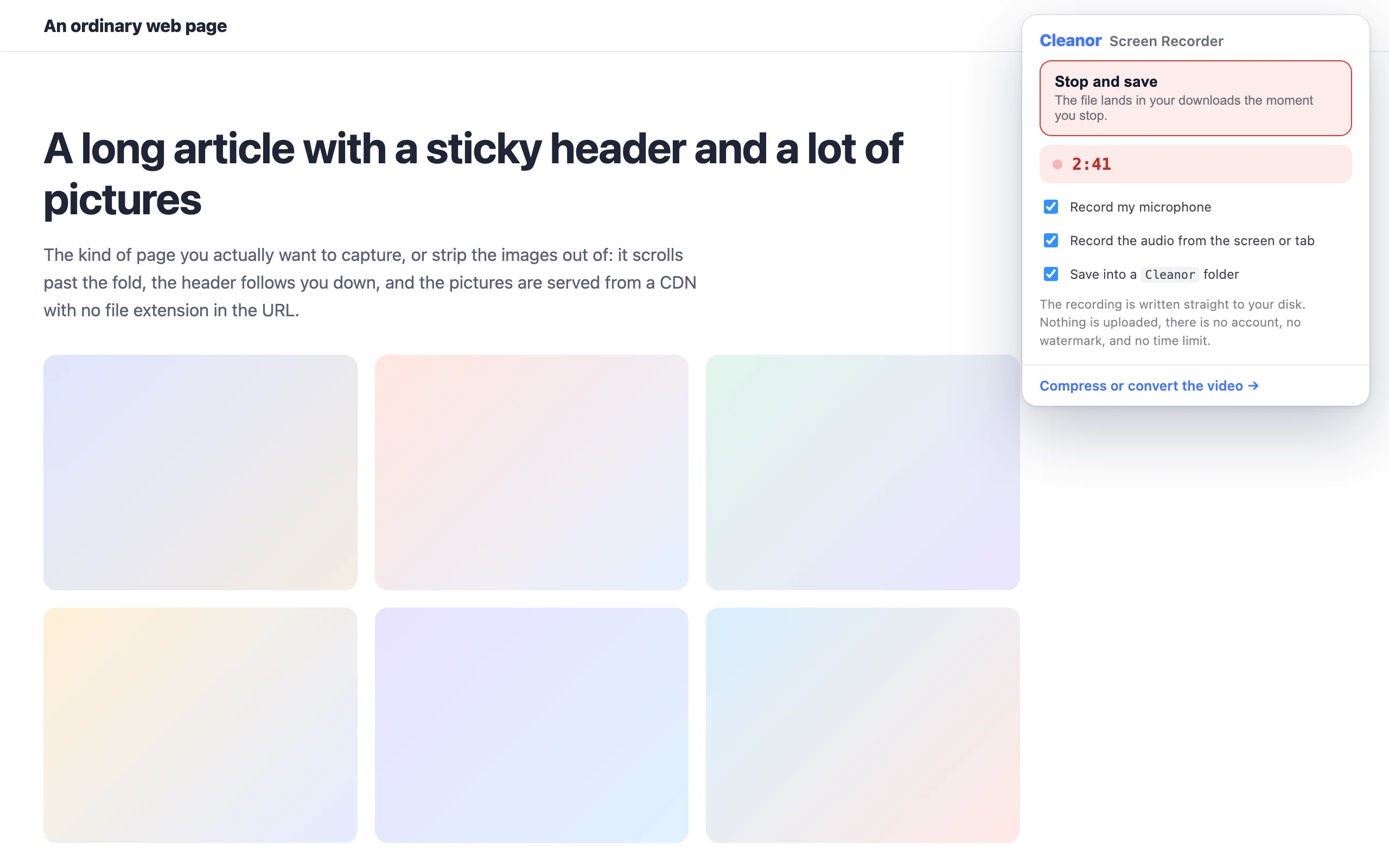
Swipe, or scroll sideways. Every shot is the real interface, not a mock-up.
No onboarding, no account. Install it and use it straight away.
Install it from the Chrome Web Store. No sign-up and no setup.
Press Alt+Shift+R or click the toolbar button. Chrome's picker asks for a screen, a window or a tab.
Click again, or use Chrome's own "Stop sharing" bar. The MP4 lands in your downloads.
The permissions are on the store listing too. They are here because a list you have to go and find is not transparency.
Not “we promise not to use it”. It is not in the manifest, so the browser would not give it to us if we changed our minds.
Every tool has an edge. Knowing where it is beats finding out halfway through a job.
Chrome only learned to encode MP4 in MediaRecorder in version 126. Below that the recording falls back to WebM, and the extension says so rather than pretending.
Nothing is uploaded, so nothing is transcoded on a server afterwards. An hour at 1080p is a large file on your disk. Compress it with the video tools on the site if you need to send it.
The other recorders can, because they keep your video. This one has no servers, so the file is yours and moving it is up to you.
The recording never leaves your computer, and the video tools that compress or convert it afterwards run in your browser too. Nothing is uploaded at either end.
No. It is written straight to your disk. There is no server, no account, and nothing to sign up for. That is also why there is no shareable link: hosting your video is exactly the thing this extension does not do.
Neither. Nothing is burned into the corner of the result and nothing stops at five minutes. The only real limit is your disk.
Yes. It can record the audio coming out of the screen or tab, your microphone, or both at once, mixed into a single track. You choose before you start.
An MP4 wherever Chrome can encode one, which is Chrome 126 and later. On anything older it falls back to WebM and tells you, rather than quietly handing you a file half your tools will refuse to open.
No. It has no access to any website, no content script, and it never reads a page. It cannot see your history, tabs, cookies or bookmarks.
Screen Recorder: Record Screen, Tab & Window is with the Chrome Web Store reviewers. The source is already public, so you can read it, or load it unpacked today.